 pax
0ef3643b32
pax
0ef3643b32
The signal-connection lambdas in __init__ added by commit 14a only
called _fsm_dispatch — they never followed up with _apply_effects.
Commit 14b added the apply layer and updated the keyboard event
handlers in eventFilter to dispatch+apply, but missed the lambdas.
Result: every effect produced by an mpv-driven signal was silently
dropped.

Two user-visible regressions:

  1. Video auto-fit (and aspect ratio lock) broken in popout. The
     mpv `video-params` observer fires when mpv reports video
     dimensions, and the chain is:
       _on_video_params (mpv thread) → _pending_video_size set
       → _poll → video_size.emit(w, h)
       → connected lambda → dispatch VideoSizeKnown(w, h)
       → state machine emits FitWindowToContent(w, h)
       → adapter SHOULD apply by calling _fit_to_content
     The lambda dropped the effects, so _fit_to_content never ran
     for video loads. Image loads were unaffected because they go
     through set_media's ContentArrived dispatch (which DOES apply
     via _dispatch_and_apply in this commit) with API-known
     dimensions.

  2. Loop=Next play_next broken. The mpv eof → VideoPlayer.play_next
     → connected lambda → dispatch VideoEofReached chain produces an
     EmitPlayNextRequested effect in PlayingVideo + Loop=Next, but
     the lambda dropped the effect, so self.play_next_requested was
     never emitted, and main_window's _on_video_end_next never fired.
     The user reported the auto-fit breakage; the play_next breakage
     was the silent twin that no one noticed because Loop=Next isn't
     the default.

Both bugs landed in commit 14b. The seek pin removal in d48435d
didn't cause them but exposed the auto-fit one because the user
was paying attention to popout sizing during the slider verification.

Fix:

- Add `_dispatch_and_apply(event)` helper. The single line of
  documentation in its docstring tells future-pax: "if you're
  going to dispatch an event, go through this helper, not bare
  _fsm_dispatch." This makes the apply step impossible to forget
  for any new wire-point.

- Update all 6 signal-connection lambdas to call _dispatch_and_apply:
    play_next → VideoEofReached
    video_size → VideoSizeKnown
    clicked_position → SeekRequested
    _mute_btn.clicked → MuteToggleRequested
    _vol_slider.valueChanged → VolumeSet
    _loop_btn.clicked → LoopModeSet

- Update the rest of the dispatch sites (keyboard event handlers in
  eventFilter, the wheel-tilt navigation, the wheel-vertical volume
  scroll, _on_video_playback_restart, set_media, closeEvent, the
  Open dispatch in __init__, and the WindowResized/WindowMoved
  dispatches in resizeEvent/moveEvent) to use _dispatch_and_apply
  for consistency. The keyboard handlers were already calling
  dispatch+apply via the two-line `effects = ...; self._apply_effects(effects)`
  pattern; switching to the helper is just deduplication. The
  Open / Window* dispatches were bare _fsm_dispatch but their
  handlers return [] anyway so the apply was a no-op.

After this commit, every dispatch site in the popout adapter goes
through one helper. The only remaining `self._fsm_dispatch(...)` call
is inside the helper itself (line 437) and one reference in the
helper's docstring.

Verification:
- Phase A test suite (16 tests) still passes
- State machine tests (65 tests) still pass — none of them touch
  the adapter wiring
- 81 / 81 tests green at HEAD

Manual verification needed:
- Click an uncached video in browse → popout opens, video loads,
  popout auto-fits to video aspect, Hyprland aspect lock applies
- Click cached video → same
- Loop=Next mode + video reaches EOF → popout advances to next post
  (was silently broken since 14b)
- Image load still auto-fits (regression check — image path was
  already working via ContentArrived's immediate FitWindowToContent)
booru-viewer
A booru client for people who keep what they save and rice what they run.
Qt6 desktop app for Linux and Windows. Browse, search, and archive Danbooru, e621, Gelbooru, and Moebooru. Fully themeable.
If you find this useful, consider buying me a coffee:


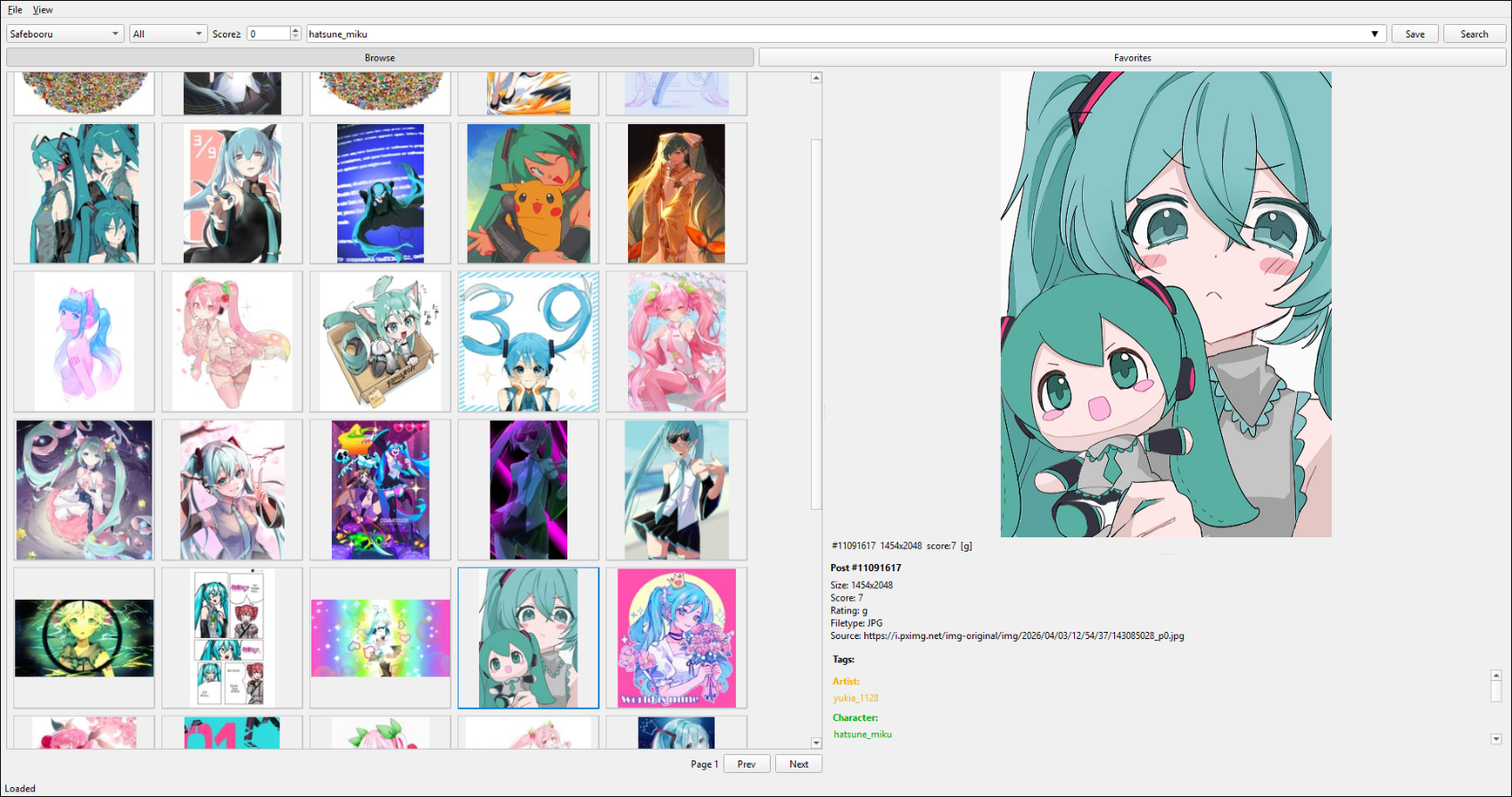
Screenshots
Windows 11 — Light Theme
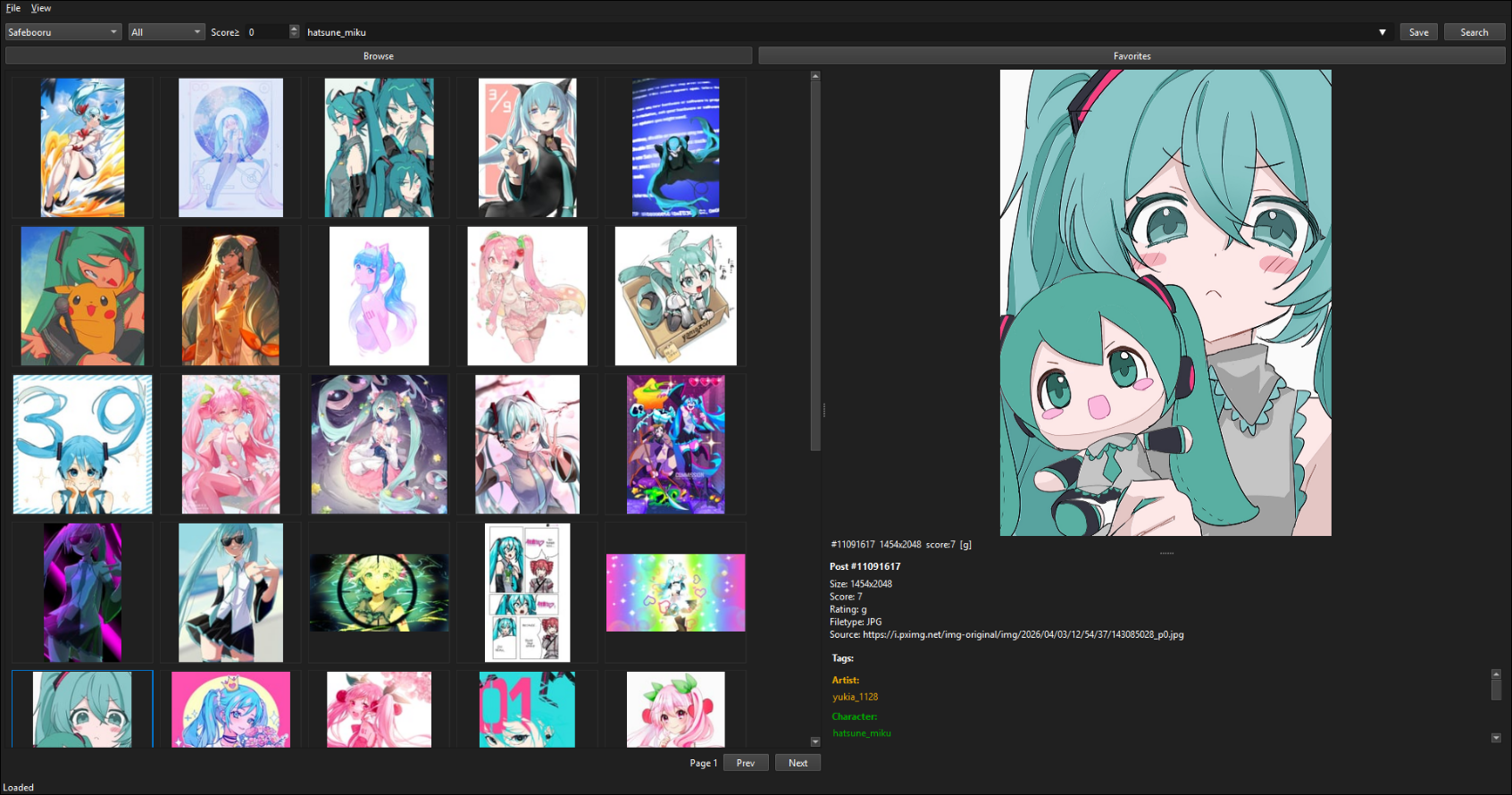
Windows 11 — Dark Theme (auto-detected)
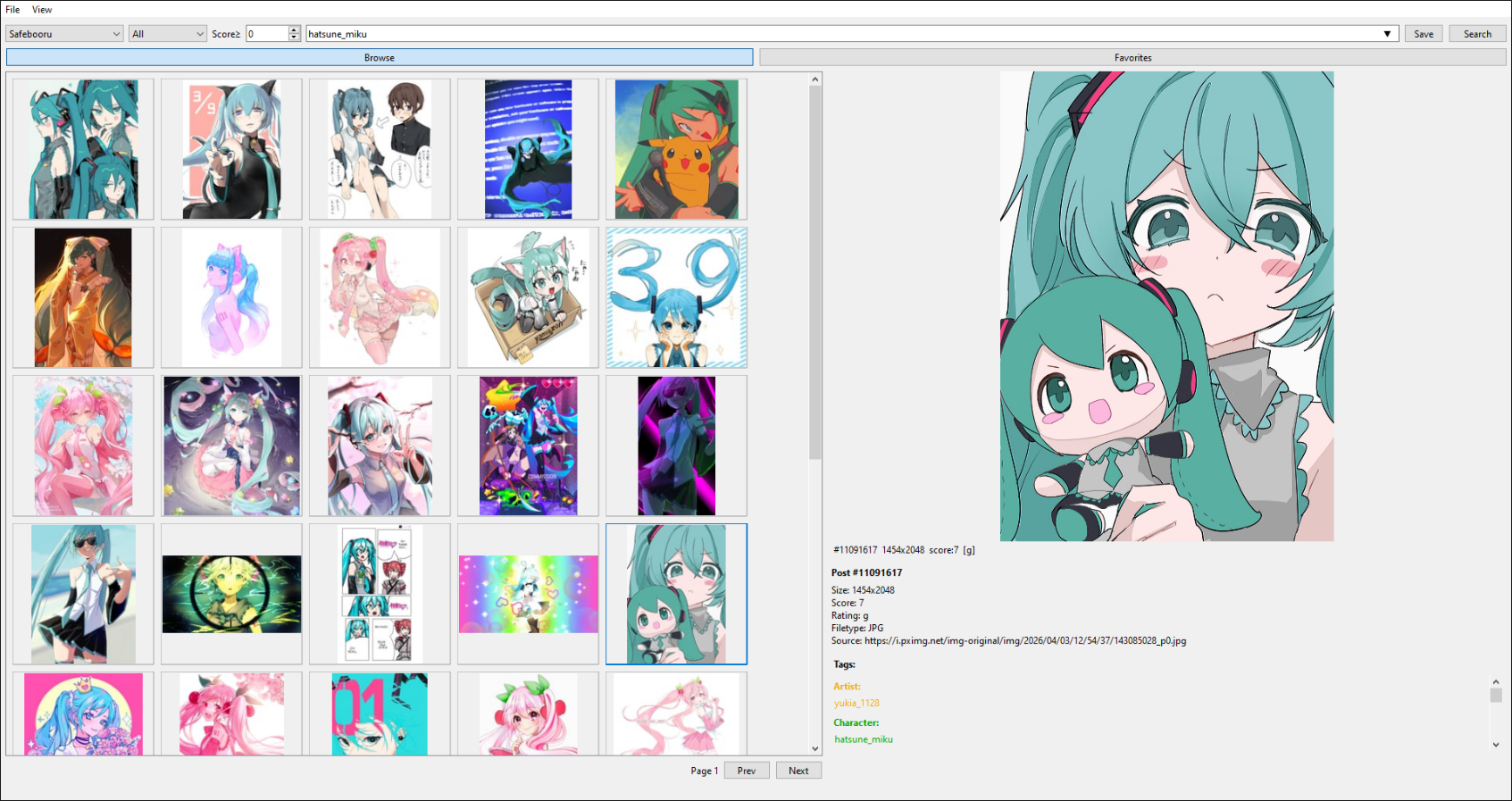
Windows 10 — Light Theme
Windows 10 — Dark Theme (auto-detected)
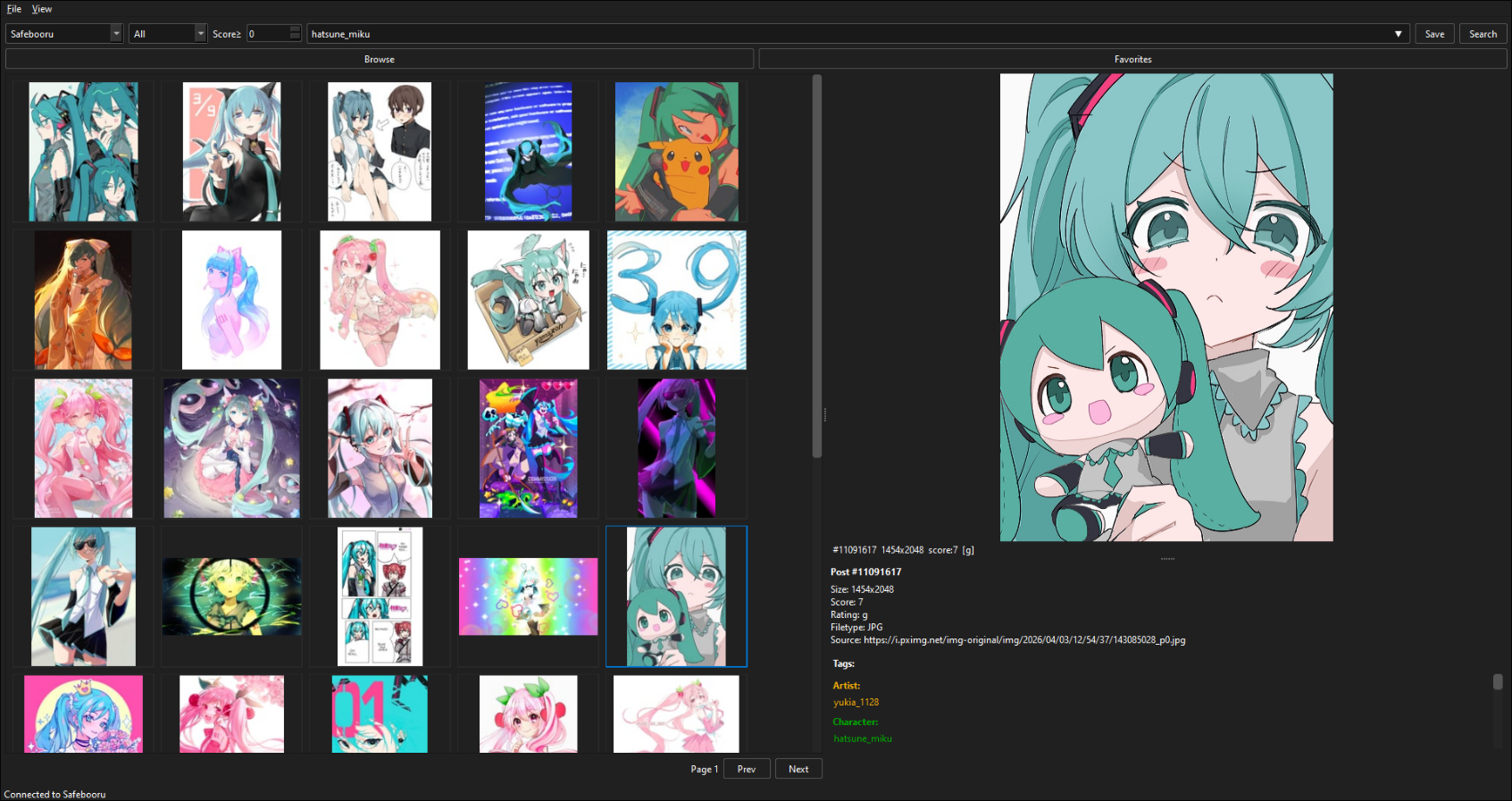
Linux — Styled via system Qt6 theme
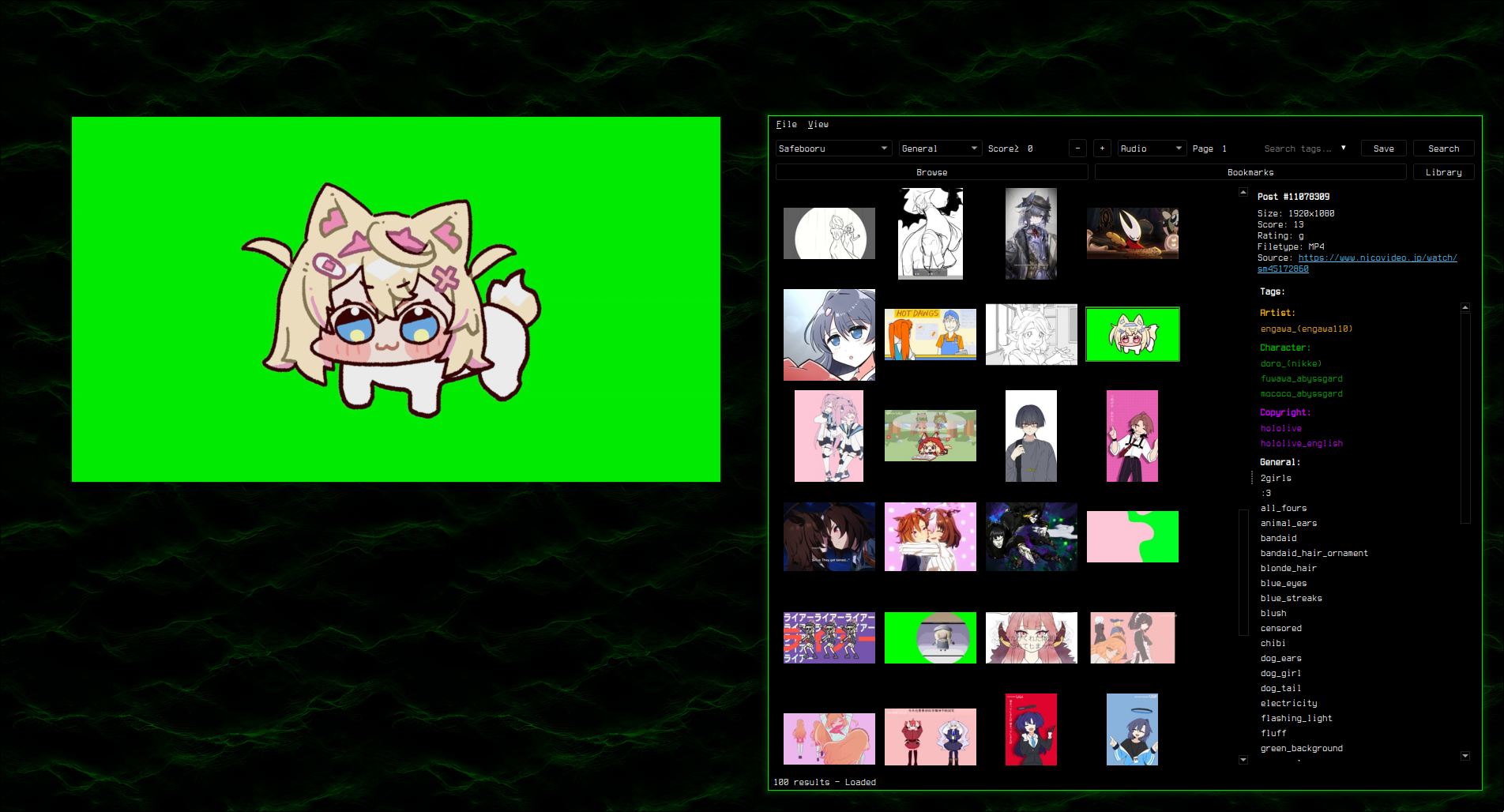
Supports custom styling via custom.qss — see Theming.
Why booru-viewer
There are a few other desktop booru clients worth knowing about. ahoviewer is the most mature one. Grabber is the most popular. Hydrus is a full local-first media tagging system that happens to import from boorus, which puts it in a different category entirely.
ahoviewer is the closest to what this is, but its "save" opens a file dialog and dumps the file into a folder you organize yourself. Most ricers who want a daily-driver booru client end up wrestling with Hydrus, scripting Grabber from the CLI, or just keeping browser tabs open.
Two things are different here:
You bookmark and save like you do in a web browser. Bookmark is a pointer. Save actually writes the file. Library items live as 12345.jpg in ~/.local/share/booru-viewer/saved/ and you can open them in Thunar or whatever you use. The difference from ahoviewer is that the tags, source, score, and folder all live in SQLite next to the files. You don't have to invent filenames or build a folder hierarchy. Search by tag, find what you saved. Your images are normal files on disk. If the database breaks, your saves don't go with it.
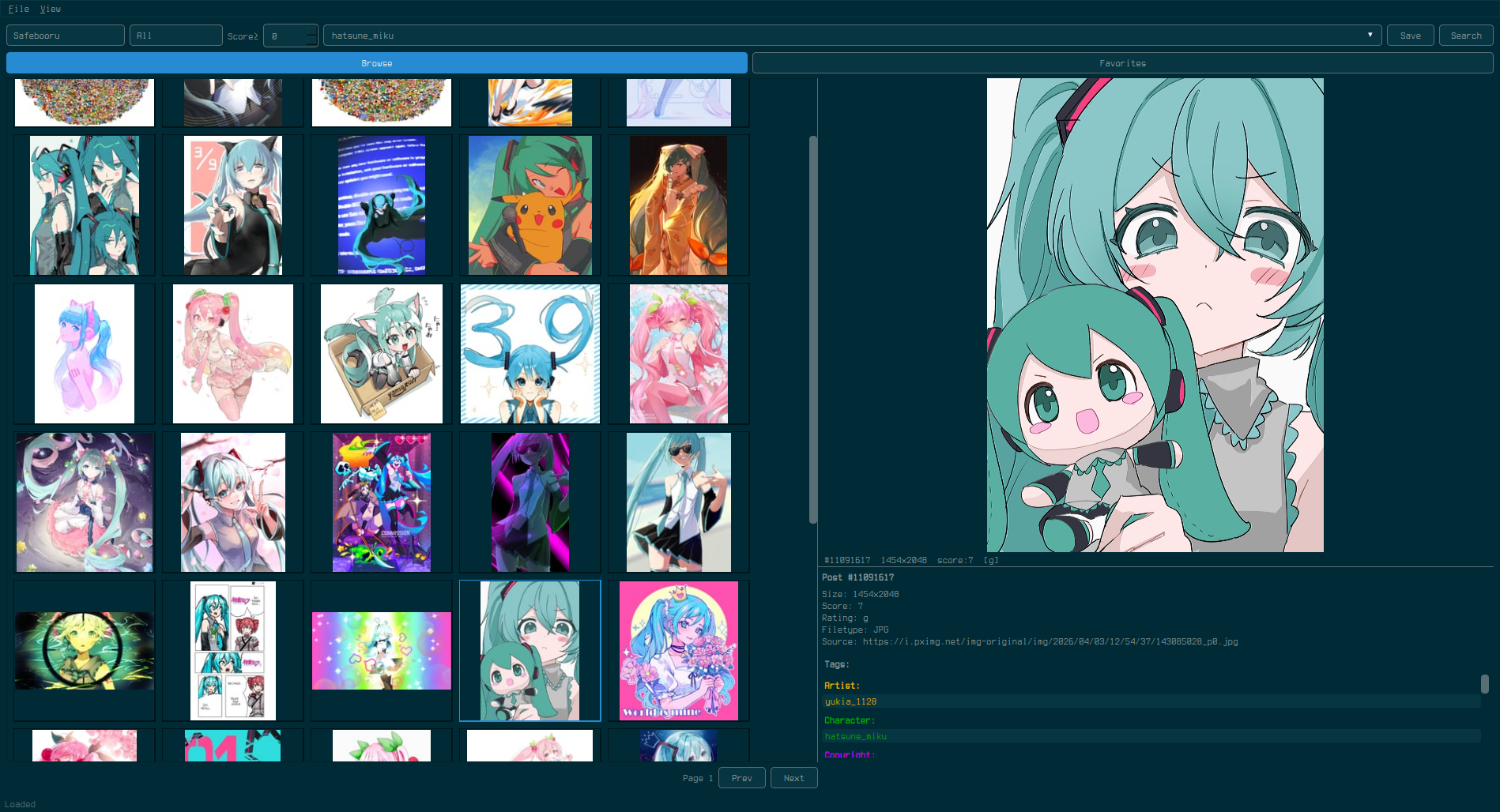
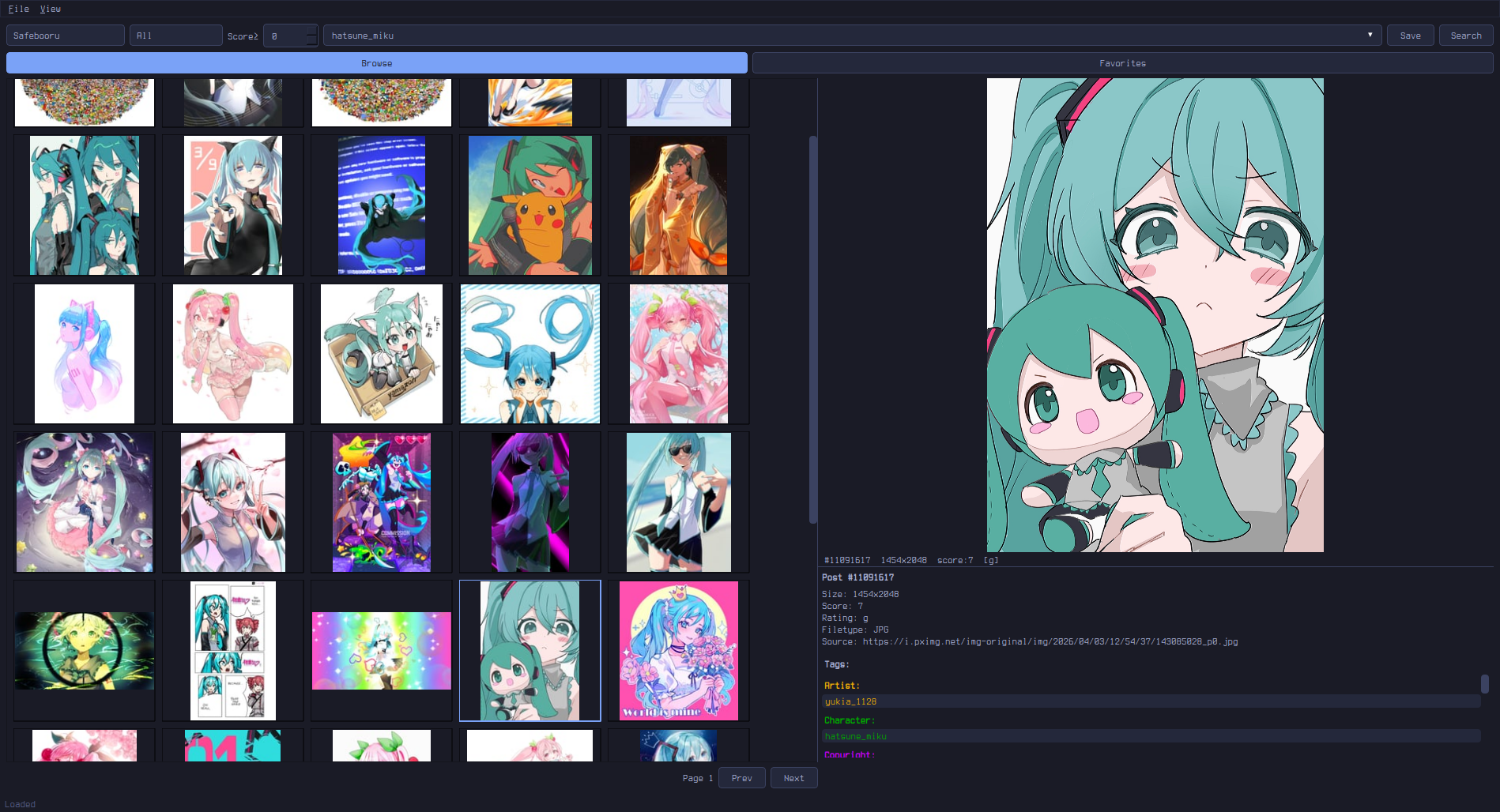
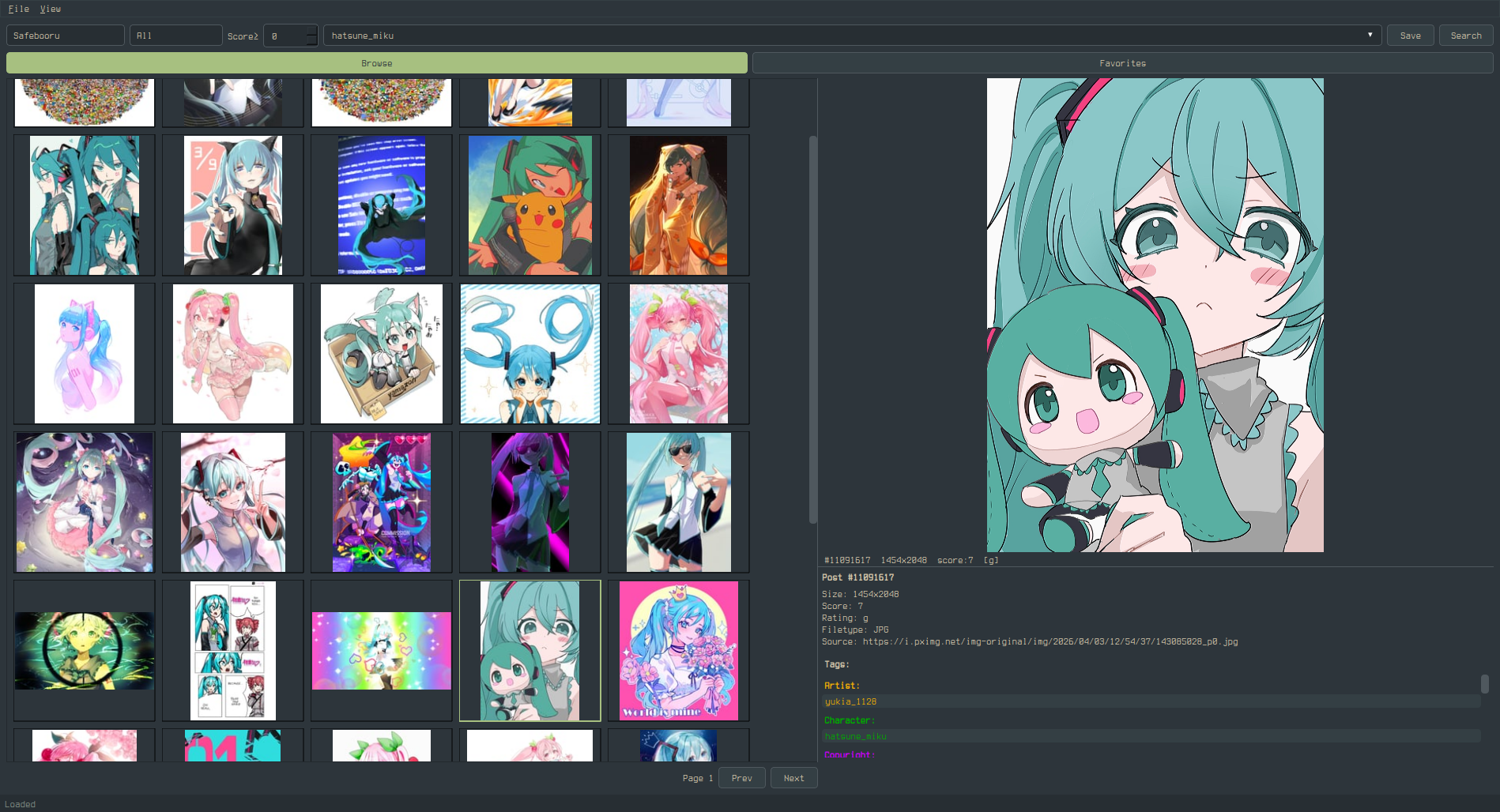
It's built for tiling Wayland. Hyprland integration with opt-out env vars if you want your own window rules. Wayland app_id set so windowrule = float, class:^(booru-viewer)$ works. The whole UI is themeable through a @palette preprocessor. Six bundled themes ship: Catppuccin, Nord, Gruvbox, Tokyo Night, Everforest, Solarized. Each comes in rounded and square. No other client in the space cares whether you're on GNOME or Hyprland.
Features
booru-viewer has three tabs that map to three commitment levels: Browse for live search against booru APIs, Bookmarks for posts you've starred for later, Library for files you've actually saved to disk.
Browsing
- Supports Danbooru, e621, Gelbooru, and Moebooru
- Auto-detect site API type — just paste the URL
- Tag search with autocomplete, history dropdown, and saved searches
- Rating and score filtering (server-side
score:>=N) - Media type filter — dropdown: All / Animated / Video / GIF / Audio
- Blacklisted tags and posts (client-side filtering with backfill)
- Thumbnail grid with keyboard navigation, multi-select (Ctrl/Shift+Click, Ctrl+A), bulk context menus, and drag thumbnails out as files
- Infinite scroll — optional, auto-loads more posts at bottom
- Start from page — jump to any page number on search
- Page cache — prev/next loads from memory, no duplicates
- Copy File to Clipboard — Ctrl+C, works for images and videos
Preview
- Image viewer with zoom (scroll wheel), pan (drag), and reset (middle click)
- GIF animation, Pixiv ugoira auto-conversion (zip to animated GIF)
- Animated PNG/WebP auto-conversion to GIF
- Video playback via mpv (MP4, WebM, MKV) with play/pause, seek, volume, mute, and seamless looping
- Info panel with post details, date, clickable tags, and filetype
- Preview toolbar — Bookmark, Save, BL Tag, BL Post, and Popout buttons above the preview panel
Popout Viewer
- Right-click preview → "Popout" or click the Popout button in the preview toolbar
- Arrow keys /
h/j/k/lnavigate posts (including during video playback) ,/.seek 3 seconds in videos,Spacetoggles play/pause- Floating overlay UI — toolbar and video controls auto-hide after 2 seconds, reappear on mouse move
F11toggles fullscreen/windowed,Ctrl+Hhides all UI,Ctrl+Pprivacy screen- Window auto-sizes to content aspect ratio; state persisted across sessions
- Hyprland:
keep_aspect_ratioprop locks window to content proportions - Bidirectional sync — clicking posts in the main grid updates the popout
- Video position and player state synced between preview and popout
Bookmarks
- Bookmark posts you might want later — lightweight pointers in the database, like clicking the star in your browser
- Group bookmarks into folders, separate from Library's folders
- Search bookmarks by tag
- Bulk save, unbookmark, or remove from the multi-select context menu
- Import/export bookmarks as JSON
- Unbookmark from grid, preview, or popout
Library
- Save posts you want to keep — real files on disk in
saved/, named by post ID, browsable in any file manager - One-click promotion from bookmark to library when you decide to commit
- Tag search across saved metadata — type to filter by indexed tags, no filename conventions required
- On-disk folder organization with configurable library directory and folder sidebar — save unsorted or to a named subfolder
- Sort by date, name, or size
- Video thumbnail generation (ffmpeg if available, placeholder fallback)
- Unsave from grid, preview, and popout (only shown when post is saved)
- Unreachable directory detection
Search
- Inline history dropdown inside the search bar
- Saved searches with management dialog
- Click empty search bar to open history
- Session cache mode clears history on exit (keeps saved searches)
Install
Windows
Download booru-viewer-setup.exe from Releases and run the installer. It installs to AppData with Start Menu and optional desktop shortcuts. To update, just run the new installer over the old one — your data in %APPDATA%\booru-viewer\ is preserved.
Windows 10 dark mode is automatically detected and applied.
Linux
Requires Python 3.11+ and pip. Most distros ship Python but you may need to install pip and the Qt6 system libraries.
Arch / CachyOS:
sudo pacman -S python python-pip qt6-base mpv ffmpeg
Ubuntu / Debian (24.04+):
sudo apt install python3 python3-pip python3-venv mpv libmpv-dev ffmpeg
Fedora:
sudo dnf install python3 python3-pip qt6-qtbase mpv mpv-libs-devel ffmpeg
Then clone and install:
git clone https://git.pax.moe/pax/booru-viewer.git
cd booru-viewer
python3 -m venv .venv
source .venv/bin/activate
pip install -e .
Run it:
booru-viewer
Or without installing: python3 -m booru_viewer.main_gui
Desktop entry: To add booru-viewer to your app launcher, create ~/.local/share/applications/booru-viewer.desktop:
[Desktop Entry]
Name=booru-viewer
Exec=/path/to/booru-viewer/.venv/bin/booru-viewer
Icon=/path/to/booru-viewer/icon.png
Type=Application
Categories=Graphics;
Hyprland integration
I daily-drive booru-viewer on Hyprland and I've baked in my own opinions on
how the app should behave there. By default, a handful of hyprctl dispatches
run at runtime to:
- Restore the main window's last floating mode + dimensions on launch
- Restore the popout's position, center-pin it around its content during navigation, and suppress F11 / fullscreen-transition flicker
- "Prime" Hyprland's per-window floating cache at startup so a mid-session toggle to floating uses your saved dimensions
- Lock the popout's aspect ratio to its content so you can't accidentally stretch mpv playback by dragging the popout corner
If you're a ricer with your own windowrules targeting class:^(booru-viewer)$
and you'd rather the app keep its hands off your setup, there are two
independent opt-out env vars:
BOORU_VIEWER_NO_HYPR_RULES=1— disables every in-code hyprctl dispatch except the popout'skeep_aspect_ratiolock. Use this if you want app-side window management out of the way but you still want the popout to size itself to its content.BOORU_VIEWER_NO_POPOUT_ASPECT_LOCK=1— independently disables the popout's aspect ratio enforcement. Useful if you want to drag the popout to whatever shape you like (square, panoramic, monitor-aspect, whatever) and accept that mpv playback will letterbox or stretch to match.
For the full hands-off experience, set both:
[Desktop Entry]
Name=booru-viewer
Exec=env BOORU_VIEWER_NO_HYPR_RULES=1 BOORU_VIEWER_NO_POPOUT_ASPECT_LOCK=1 /path/to/booru-viewer/.venv/bin/booru-viewer
Icon=/path/to/booru-viewer/icon.png
Type=Application
Categories=Graphics;
Or for one-off launches from a shell:
BOORU_VIEWER_NO_HYPR_RULES=1 booru-viewer
Dependencies
- Python 3.11+
- PySide6 (Qt6)
- httpx
- Pillow
- python-mpv
- mpv (system package on Linux, bundled DLL on Windows)
Keybinds
Grid
| Key | Action |
|---|---|
Arrow keys / h/j/k/l |
Navigate grid |
Ctrl+A |
Select all |
Ctrl+Click / Shift+Click |
Multi-select |
Home / End |
Jump to first / last |
| Scroll tilt left / right | Previous / next thumbnail (one cell) |
Ctrl+C |
Copy file to clipboard |
| Right click | Context menu |
Preview
| Key | Action |
|---|---|
| Scroll wheel | Zoom (image) / volume (video) |
| Scroll tilt left / right | Previous / next post |
Middle click / 0 |
Reset view |
Arrow keys / h/j/k/l |
Navigate posts |
, / . |
Seek 3s back / forward (video) |
Space |
Play / pause (video, hover to activate) |
| Right click | Context menu (bookmark, save, popout) |
Popout
| Key | Action |
|---|---|
Arrow keys / h/j/k/l |
Navigate posts |
| Scroll tilt left / right | Previous / next post |
, / . |
Seek 3s (video) |
Space |
Play / pause (video) |
| Scroll wheel | Volume up / down (video) |
F11 |
Toggle fullscreen / windowed |
Ctrl+H |
Hide / show UI |
Ctrl+P |
Privacy screen |
Escape / Q |
Close popout |
Global
| Key | Action |
|---|---|
Ctrl+P |
Privacy screen |
F11 |
Toggle fullscreen |
Adding Sites
File > Manage Sites. Enter a URL, click Auto-Detect, and save.
API credentials are optional — needed for Gelbooru and rate-limited sites.
Tested Sites
- danbooru.donmai.us
- gelbooru.com
- rule34.xxx
- safebooru.donmai.us
- safebooru.org
- e621.net
Theming
The app uses your OS native theme by default. To customize, copy a .qss file from the themes/ folder to your data directory as custom.qss:
- Linux:
~/.local/share/booru-viewer/custom.qss - Windows:
%APPDATA%\booru-viewer\custom.qss
A template is also available in Settings > Theme > Create from Template.
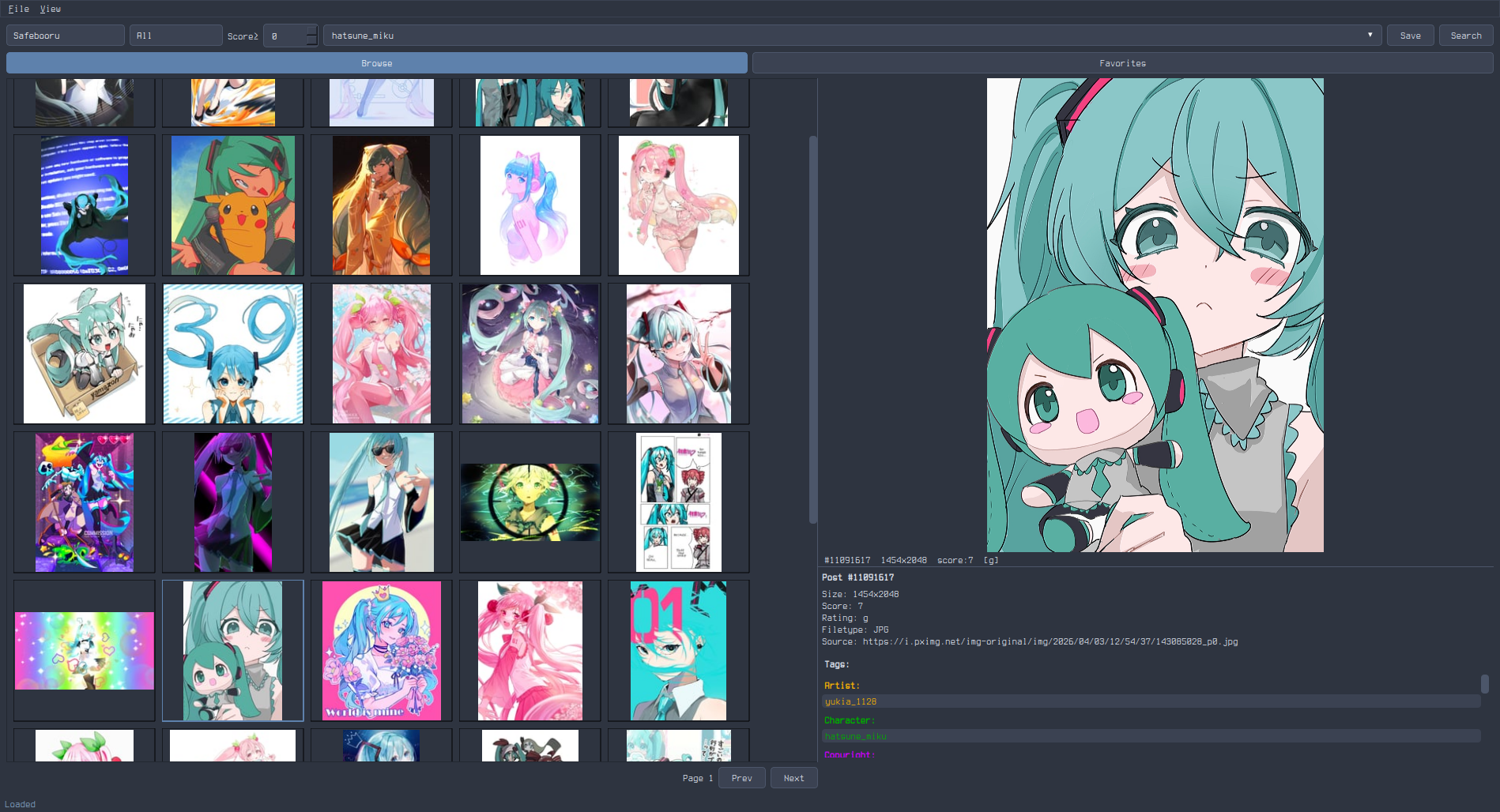
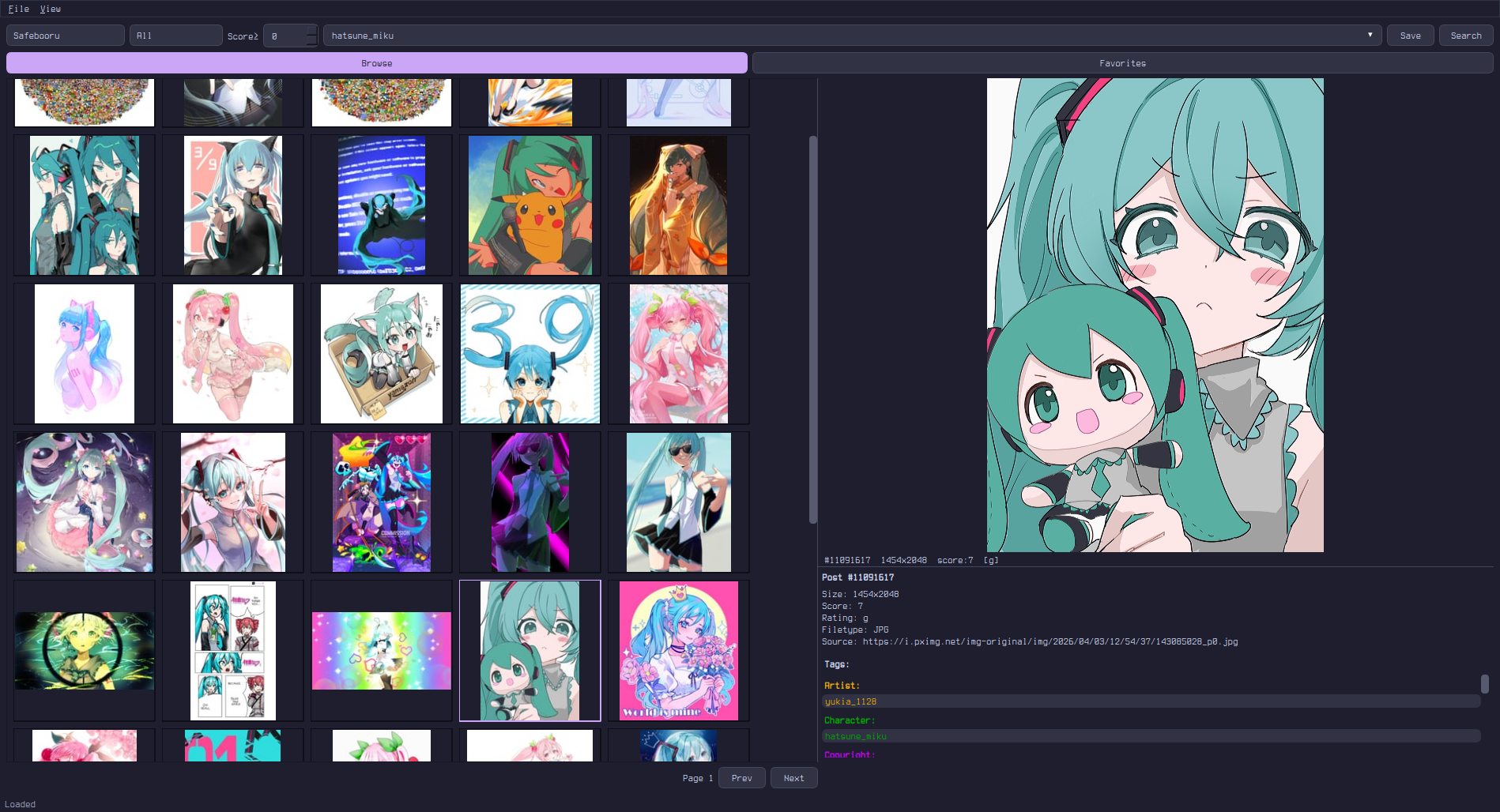
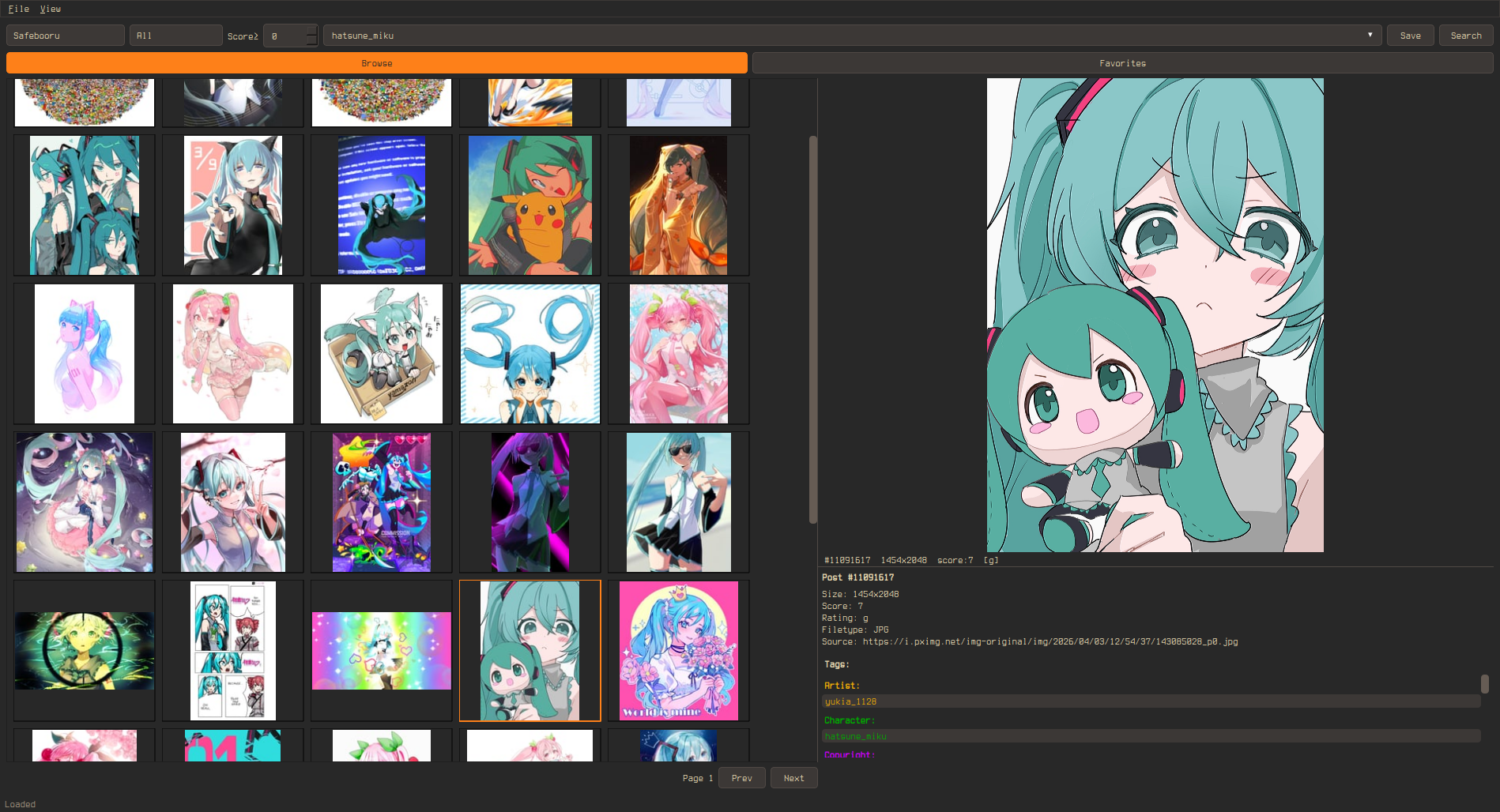
Included Themes
Each theme ships in two variants: *-rounded.qss (4px corner radius) and *-square.qss (no corner radius except radio buttons). Same colors, different geometry.
Settings
- General — page size, thumbnail size, default site, default rating/score, prefetch mode (Off / Nearby / Aggressive), infinite scroll, popout monitor, file dialog platform
- Cache — max cache size, max thumbnail cache, auto-evict, clear cache on exit (session-only mode)
- Blacklist — tag blacklist with toggle, post URL blacklist
- Paths — data directory, cache, database, configurable library directory
- Theme — custom.qss editor, template generator, CSS guide
- Network — connection log showing all hosts contacted this session
Data Locations
| Linux | Windows | |
|---|---|---|
| Database | ~/.local/share/booru-viewer/booru.db |
%APPDATA%\booru-viewer\booru.db |
| Cache | ~/.local/share/booru-viewer/cache/ |
%APPDATA%\booru-viewer\cache\ |
| Library | ~/.local/share/booru-viewer/saved/ |
%APPDATA%\booru-viewer\saved\ |
| Theme | ~/.local/share/booru-viewer/custom.qss |
%APPDATA%\booru-viewer\custom.qss |
To back up everything: copy saved/ for the files themselves and booru.db for bookmarks, folders, and tag metadata. The two are independent — restoring one without the other still works. The saved/ folder is browsable on its own in any file manager, and the database can be re-populated from the booru sites for any post IDs you still have on disk.
Privacy
booru-viewer makes no connections except to the booru sites you configure. There is no telemetry, analytics, update checking, or phoning home. All data stays local on your machine.
Every outgoing request is logged in Settings > Network so you can verify this yourself — you will only see requests to the booru API endpoints and CDNs you chose to connect to.
License
MIT